Remote Control for Rоku & TCL
SensusTech LLCTools
4.15.74K Reviews
- Version
- 1.8.5
- Installs
- 1.00M
- Age Rating
- Everyone
Screenshots
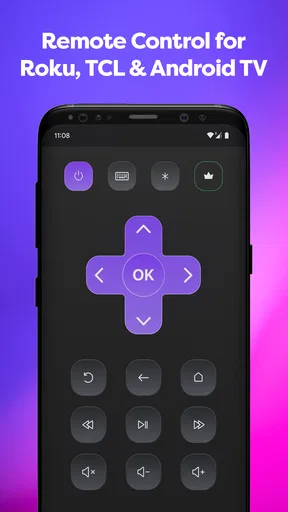
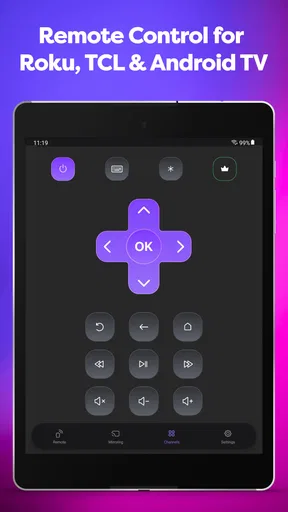
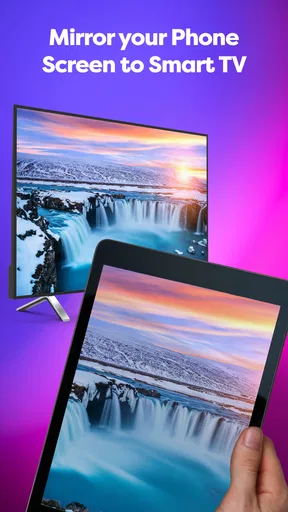
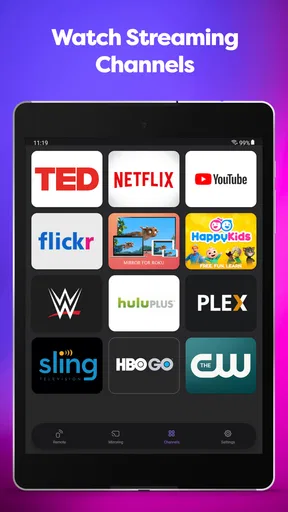
Our Review of Remote Control for Rоku & TCL
 Analysis by Appyee
I tried Remote Control for Roku & TCL as the kind of utility you open when the physical remote has disappeared under a cushion, stopped responding, or simply feels inconvenient. It is a free Android tools app from SensusTech LLC, designed around controlling compatible Roku, TCL, Hisense, and Insignia smart TVs from a phone, with screen mirroring included in its store summary. My overall impression is practical rather than flashy: when the phone and television cooperate on the same network, it can turn a familiar device into a useful backup remote. When that connection is unavailable or unstable, the experience becomes much less dependable.
The app has reached more than a million installs and holds a 4.1 average from roughly 57 thousand ratings, with about 5.5 thousand written reviews. Those figures suggest that the basic idea works for many households, but they also fit my experience of it as a convenience tool with a very specific dependency. It is not a universal replacement for every television remote, and it is not the best choice for someone who expects a remote app to work independently of home-network conditions.
How the connection shapes everyday control
I find that the connection is the real starting point for everyday control: once the phone and television can communicate over the home network, choosing a menu or adjusting playback is the easy part. That makes the app most useful when I set it up before the physical remote goes missing, then check which television is selected in a multi-TV home. The next section looks at how those small handoffs affect the experience.
The first useful test is not the button layout
With this type of app, the most important early step is making sure the phone and television are connected to the same home network. That is the practical foundation for discovering and controlling a compatible Roku or smart TV. I would check that before blaming the app: a phone using mobile data while the television remains on home Wi-Fi is a common reason a remote app appears unresponsive.
This network requirement changes how I judge the product. A traditional infrared remote can often point at the television without asking questions about routers, bands, or device discovery. A phone-based remote is more flexible in some ways, but it relies on communication between two devices. If your home network is divided into guest and main networks, or if a router isolates wireless devices, pairing may be more troublesome than the simple store description suggests.
Once the television is visible, the appeal is immediate. I can keep the phone in my hand while watching, use it when the physical remote is missing, and avoid searching for small buttons in a dark room. The value is especially clear in a shared living room where the remote tends to migrate between the sofa, a bedroom, and a child’s play area.
A realistic evening use case
Imagine starting a film and realizing that the physical remote is in another room. If the television is already powered on and the phone is using the same household network, opening the app can be quicker than looking through drawers. I would use the phone to navigate, adjust playback-related controls available through the connected television, or move through menus without interrupting the evening.
That scenario also reveals the limitation: this is most convenient when the television is already reachable. If the TV is disconnected from Wi-Fi, the router has restarted, or the phone has moved to a different network, the app cannot be treated like a direct replacement for a basic infrared handset. I recommend keeping the original remote accessible even if you use this app regularly.
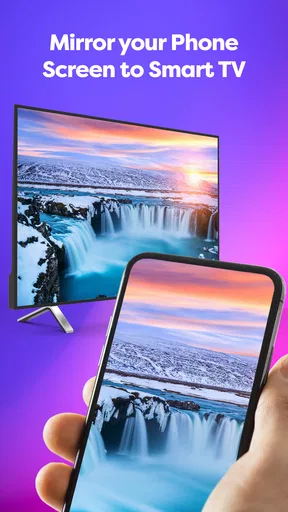
Screen mirroring is useful, but it changes the job
The inclusion of screen mirroring makes the app more than a button panel. Mirroring can be handy when I want to show something from the phone on a larger screen, particularly for a quick demonstration, a photo, or content that is easier to find on the handset. However, mirroring is more sensitive to network quality than simple remote commands. A busy or inconsistent connection can make the experience feel delayed, and the television may not respond as smoothly as it does during ordinary remote navigation.
I would therefore treat mirroring as an occasional extension rather than the main reason to install the app. For regular video viewing, a television’s own app or a dedicated casting method may be more comfortable. The phone screen, battery level, and network traffic all become part of the viewing experience when the phone is doing more than sending a simple command.
What happens when the network fails?
The most important recovery habit is to troubleshoot the connection in a sensible order. I start by checking whether the phone can reach the internet through the expected Wi-Fi network, then confirm that the television is still connected. If the router has recently rebooted, waiting for both devices to reconnect can solve the issue without changing anything inside the app.
If the TV still does not appear, I would close and reopen the app, verify that the phone has not silently switched to cellular data, and look for a network mismatch. A guest network is a particularly easy mistake because it may provide internet access while preventing the phone from communicating with devices on the main network. Moving both devices to the same ordinary home network is more useful than repeatedly tapping the discovery screen.
There is also a practical distinction between a television that is on but unreachable and one that is fully powered down. A phone remote may be unable to wake a set that is not listening on the network, depending on the television’s own settings and state. I would not depend on the app as the only way to turn on a television in a home where the physical remote has been lost.
Why the same network is not always enough
Even when both devices show the same Wi-Fi name, communication can still be affected by router configuration. Some networks separate wireless clients for security, and range extenders can create confusing paths between rooms. I would test the app near the television first, then move around the home. That simple test helps distinguish a setup problem from a distance or signal problem.
This is also where the app compares differently with a conventional remote. A physical handset is usually limited by line of sight and battery condition, while the phone app is less dependent on pointing direction but more dependent on network visibility. If your television is mounted behind a cabinet or the original remote has poor range, the phone may be more comfortable. If your Wi-Fi is unreliable, the physical remote remains the safer tool.
Using it away from the sofa
The phone format makes the app useful in mobile contexts around the home. I can carry the remote to the kitchen, use it while standing near a wall-mounted television, or hand control to someone without passing around a separate handset. The screen is also easier to search by touch than a remote with a crowded arrangement of small keys.
That convenience comes with a small behavioral cost. A physical remote is always ready if it is nearby, while a phone must be unlocked, the app opened, and the correct device selected. Notifications, calls, and battery-saving behavior can interrupt the flow. For a short adjustment, the app is convenient; for an entire evening of frequent channel or volume changes, some people may still prefer the tactile certainty of dedicated buttons.
Shared homes and multiple televisions
In a household with more than one compatible television, device selection becomes important. I would label or remember each set carefully rather than assuming the first discovered device is the one I want. This matters in apartments, guest rooms, and homes where several Roku or supported-brand televisions are active at the same time.
A phone remote is particularly helpful when family members have different viewing habits, but it can also create confusion if several people try to control the same television. I recommend agreeing on who is using the app before starting playback. That is not a flaw unique to this product; it is a consequence of turning a personal phone into a shared household control surface.
Travel and temporary setups
I would be cautious about relying on it in hotels, rentals, or other temporary spaces. Public and guest networks often isolate connected devices, and the television may not be configured for straightforward phone control. Even if the TV is a supported brand, compatibility at the brand level does not guarantee that every network or television setup will behave the same way.
For travel, the app is best viewed as a possible convenience rather than essential equipment. A phone can be useful for controlling a television in a private rental with a normal local network, but I would not assume that a hotel’s Wi-Fi will permit discovery or communication. A physical remote supplied with the room remains the dependable fallback.
Being careful with mobile data
Because the core use case involves a phone communicating with a television, I would avoid assuming that mobile data can substitute for a shared local network. If the phone leaves Wi-Fi and continues using cellular data, the television may no longer be reachable. This is worth checking before troubleshooting more complicated settings.
Screen mirroring deserves extra attention from anyone with a limited mobile plan. I would use it while connected to a trusted Wi-Fi network and avoid treating it as a reason to stream everything through cellular data. The app may be free to install, but network usage still depends on what I mirror and where that content comes from.
The app itself is free, while in-app purchases are listed at $4.99 per item. I would look at any purchase prompt carefully and decide whether the basic remote workflow already meets my needs before paying for an optional addition. The important trade-off is not just the price; it is whether the extra function improves a real routine, such as frequent mirroring, rather than solving a problem I rarely have.
Privacy-minded setup habits
For a network-connected tool, I prefer using it on my normal private home network rather than an open public connection. I would also avoid mirroring sensitive screens in a shared room, since anything displayed on the television can be seen by others nearby. These are sensible habits for any screen-sharing utility, but they matter more when a phone is being used as both a personal device and a household controller.
I would keep the app updated when a newer version is offered through the relevant store, especially if device discovery becomes inconsistent after a phone or router change. The current version is 1.8.5, and the app supports Android 7.0 or later. That makes it accessible to many older Android phones, although the age of a handset can still affect responsiveness, battery behavior, and the comfort of using a small on-screen control panel.
Where it beats the usual alternatives
Compared with a generic universal remote app, this one has a clearer focus on Roku and named supported television brands: TCL, Hisense, and Insignia. That focus can make sense if one of those sets is already in your home and you want a phone-based backup rather than a remote designed to cover every possible appliance.
Compared with an official television-brand app, the advantage is its broader stated compatibility across these brands. The trade-off is that a brand-specific app may feel more natural if your household uses only one manufacturer and you want deeper integration with that ecosystem. I would choose this app when I value a single remote approach for supported Roku-related televisions, not because I expect it to replace every manufacturer-specific feature.
Compared with a physical universal remote, the phone app avoids buying another accessory and is harder to misplace if the phone is already in my hand. The universal remote wins on immediate availability, tactile controls, and independence from phone battery and network discovery. The right choice depends on which inconvenience is more common in your home.
Who should install it?
I think it is a good fit for someone with a compatible Roku, TCL, Hisense, or Insignia smart TV who regularly misplaces the remote or prefers using a touchscreen. It also suits households that want a backup control method without purchasing another handset. People interested in occasional screen mirroring may appreciate having that option in the same utility.
I would skip it if your television is not one of the supported types, if your home network regularly separates devices, or if you need a remote that works during router outages. It is also not my first recommendation for someone who dislikes unlocking a phone for every adjustment. In that case, a physical replacement remote is simpler and more predictable.
My connectivity verdict
After considering the app as a daily tool rather than a novelty, I see its strongest quality in convenience under the right network conditions. It turns a compatible phone and television into a flexible pair, and the ability to carry the remote around the home is genuinely useful. The screen-mirroring option broadens its purpose, although it should be approached as a network-sensitive feature rather than a guaranteed substitute for every casting method.
The main weakness is equally clear: the app depends on communication between devices, so a weak, divided, or unavailable network can stop the experience before the controls matter. I would install it as a backup and use it confidently on a stable private network, but I would not throw away the physical remote. For Android users with a supported television, an Everyone content rating, and no objection to optional $4.99 in-app items, Remote Control for Roku & TCL is a sensible free tool when convenience matters more than complete independence from connectivity.
Privacy and Permissions
See what permissions an app requests and how it handles your data.
- Phone
- read phone status and identity
- Photos/Media/Files
- read the contents of your USB storage, modify or delete the contents of your USB storage
- Storage
- read the contents of your USB storage, modify or delete the contents of your USB storage
- Camera
- take pictures and videos
- Microphone
- record audio
- Wi-Fi connection information
- view Wi-Fi connections
- Device ID & call information
- read phone status and identity
- Other
- view network connections, pair with Bluetooth devices, allow Wi-Fi Multicast reception, full network access, control vibration, prevent device from sleeping
Verdict
Strengths of Remote Control for Rоku & TCL
- Quick pairing with Roku and TCL devices on the same Wi‑Fi network.
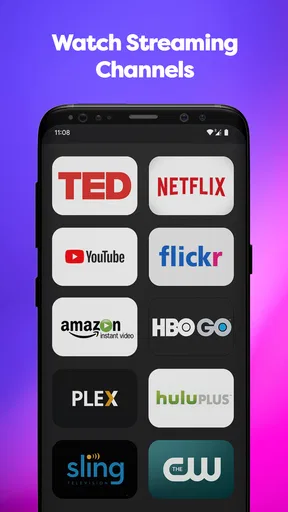
- Includes dedicated buttons for streaming shortcuts and navigation.
- Touch controls make scrolling through menus faster than a physical remote.
- Useful replacement when the original remote is lost or out of batteries.
- Works well for basic playback, volume, and app navigation tasks.
Limitations of Remote Control for Rоku & TCL
- Requires both the phone and TV to use the same Wi‑Fi connection.
- May show ads or request upgrades during regular remote use.
- Connection can drop when the TV enters standby or the network changes.
- Typing with the phone keyboard may not work in every Roku or TCL app.
- Features and compatibility can vary between Roku TV models and regions.
Similar Picks in This Category
View All
Google LLC4.0

Gboard - the Google Keyboard
Google LLC4.5

Google Play services
Google LLC4.3

Google Play Store
Google LLC4.9

Files by Google
Google LLC4.5

SHAREit: Transfer, Share Files
Smart Media4U Technology Pte.Ltd.4.3
Frequently Asked Questions
What is Remote Control for Roku & TCL, and how does it work?
Remote Control for Roku & TCL is a mobile remote application designed to control compatible Roku streaming players, Roku TVs, and selected TCL smart TVs from an Android or iOS device. After installing it, your phone generally needs to be connected to the same Wi-Fi network as the television or streaming device. The app then searches for available devices and provides controls such as navigation, volume, playback, and channel access.
Is Remote Control for Roku & TCL compatible with every Roku or TCL television?
Compatibility can vary depending on the exact Roku player, TCL television model, operating system, and region. Most devices must support network-based remote control and be connected to the same local Wi-Fi network as the phone. Older televisions, devices using a different platform, or models with restricted network settings may not appear in the app. Checking the app listing and your TV model before downloading is recommended.
Does the app require Wi-Fi, Bluetooth, or an internet connection?
In normal use, the phone and the Roku or TCL device usually need to share the same Wi-Fi network so the application can discover and communicate with it. Bluetooth is not typically required for basic control. An internet connection may be necessary for downloading the app, advertisements, updates, or certain online features, but the remote commands themselves generally work through the local network.
What features are included in Remote Control for Roku & TCL?
The app commonly offers essential remote functions, including directional navigation, OK or select, back, home, playback controls, volume adjustment, mute, and power commands when supported by the television. Some versions may also include a keyboard, quick-launch buttons, channel controls, or touchpad navigation. Available features can differ according to the connected Roku or TCL model and the app version.
Is Remote Control for Roku & TCL free and safe to use?
The application may be available as a free download, but it can include advertising, optional purchases, or subscription-based features depending on the platform and version. Before installing, review the store page for pricing and requested permissions. Because the app communicates with devices on your local network, only grant access when you understand why it is needed, and download it from an official app store.
